Zoo Code (formerly RooCode) is a 100% open-source AI coding assistant for VS Code.
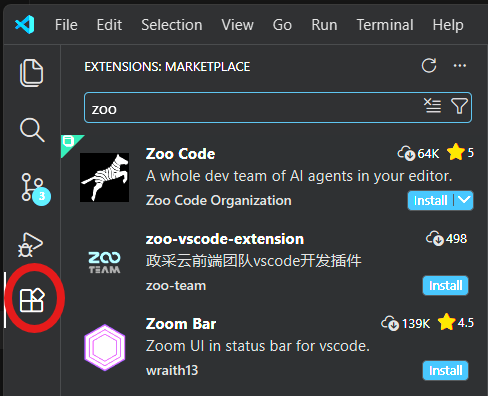
1. Install Zoo Code
Install the Zoo Code Extension from the VS Code Extensions Marketplace.
2. Configure Provider
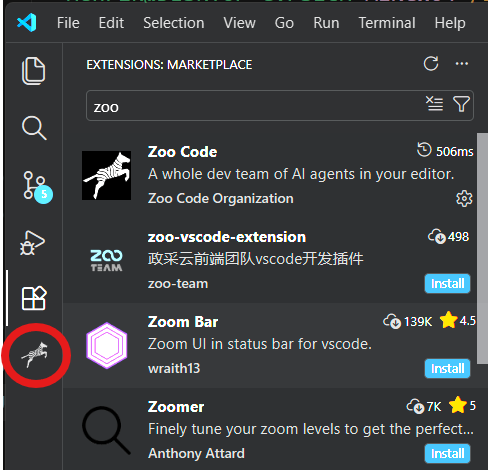
Once the extension is installed, a Zoo Code icon appears in the VS Code activity bar. Click it to open the Zoo Code panel.
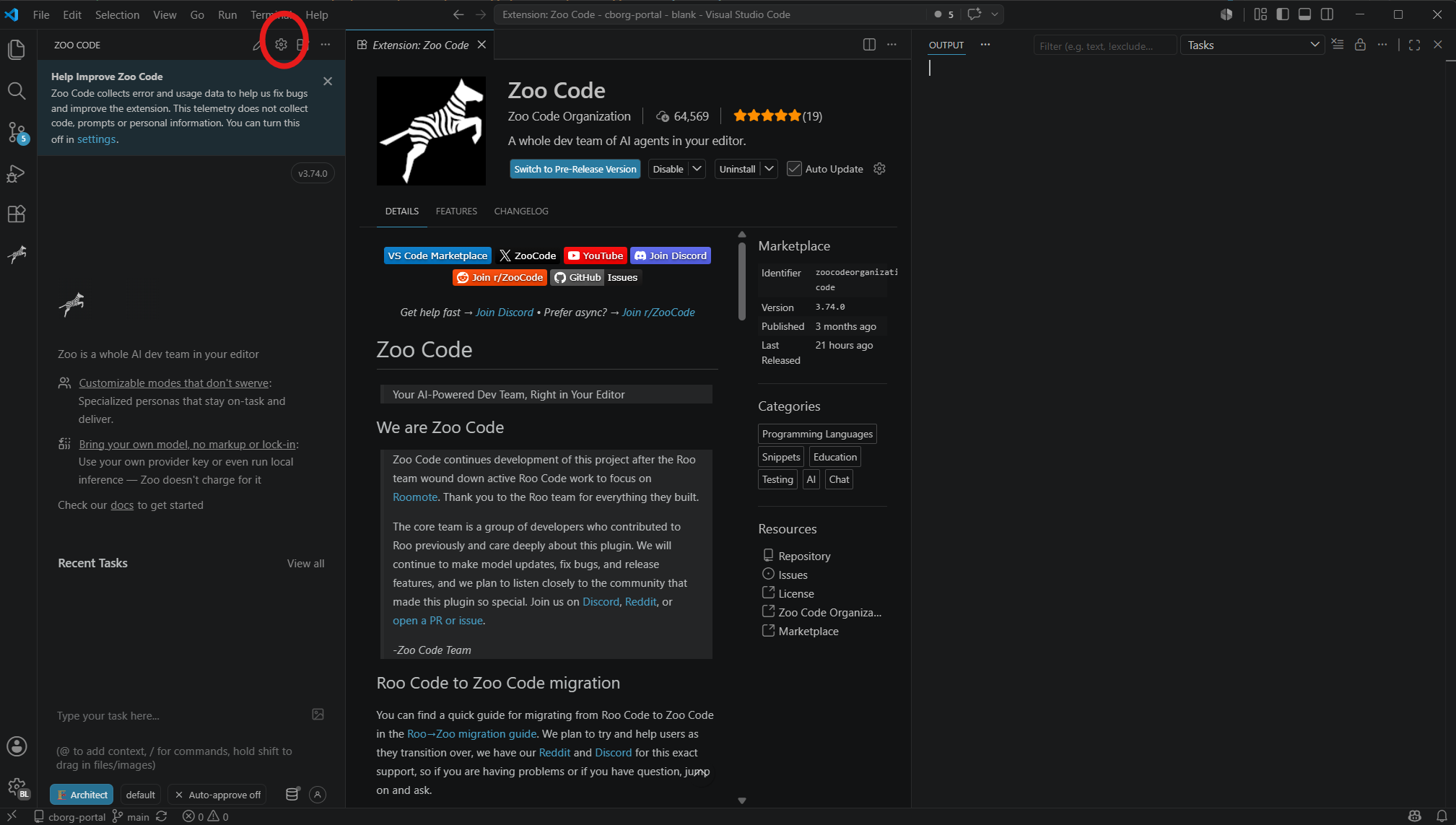
Open the Settings menu using the gear icon at the top of the Zoo Code panel. Note: this is different from the VS Code Settings menu.
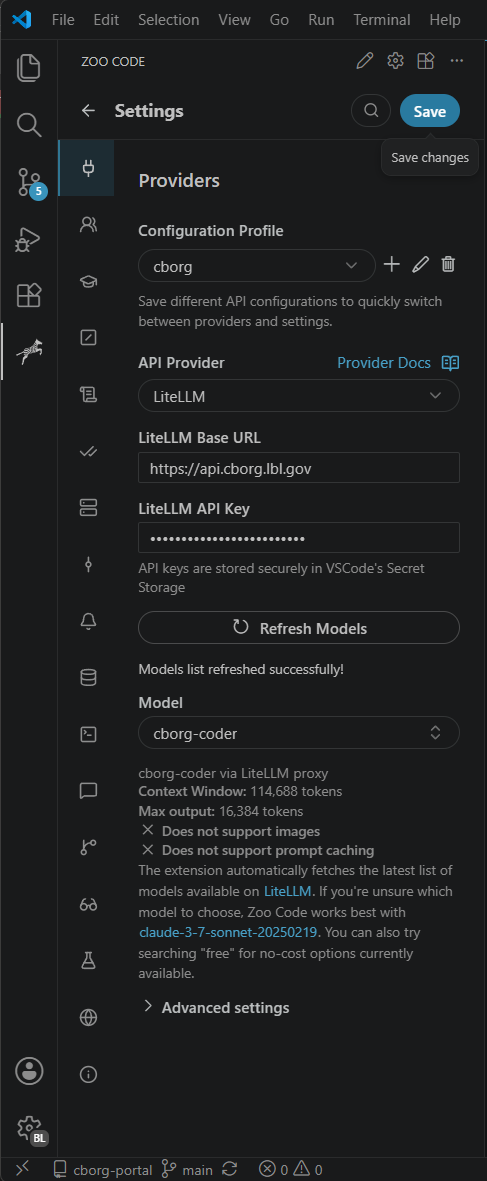
Then configure the provider:
- Go to Providers
- Click + to create a new profile
- Name the profile something appropriate, e.g. ‘CBorg Coder’ (can be changed later)
- For API Provider select LiteLLM
- Set Base URL to https://api.cborg.lbl.gov
- Add your CBORG_API_KEY to LiteLLM API Key
- Click Refresh Models
- Select the desired model. In this example, we selected
cborg-coder. - Click Save.
The finished configuration should look like this:
That’s it! You can now use Zoo Code to code with CBorg.
Automated Setup via Makefile
For a faster setup, use the cborg-client repository on GitHub. It includes a Makefile in the zoocode/ directory that generates a ready-to-import zoo-code-settings.json file pre-configured with CBorg models.
Requirements: CBORG_API_KEY environment variable set, plus jq and envsubst installed.
git clone https://github.com/lbnl-science-it/cborg-client.git
cd cborg-client/zoocode
export CBORG_API_KEY=<your-key>
make
The Makefile generates two files:
zoo-code-settings.json– provider profiles and global settings; import via Zoo Code > Settings > About Zoo Code > Manage Settings > Reset (then restart Zoo Code), then Import.mcp_settings.json– MCP server configuration with your API key pre-filled; copy its contents into your Zoo Code global MCP settings file via Zoo Code > Settings > MCP Servers > (edit icon).
Security note: Both generated files contain your CBorg API key. Do not share or commit them – they are excluded from git automatically.
The mcp_settings.json file will look like this (MCP servers are disabled by default – enable individual servers in the Zoo Code MCP settings panel when you want to use them):
{
  "mcpServers": {
    "context7": {
      "type": "streamable-http",
      "url": "https://api.cborg.lbl.gov/mcp/context7",
      "headers": {
        "Authorization": "Bearer <your-key>"
      },
      "alwaysAllow": ["*"],
      "disabled": true
    },
    "valency": {
      "type": "streamable-http",
      "url": "https://api.cborg.lbl.gov/mcp/valency",
      "headers": {
        "Authorization": "Bearer <your-key>"
      },
      "alwaysAllow": ["*"],
      "disabled": true
    },
    "tavily": {
      "type": "streamable-http",
      "url": "https://api.cborg.lbl.gov/mcp/tavily",
      "headers": {
        "Authorization": "Bearer <your-key>"
      },
      "alwaysAllow": ["*"],
      "disabled": true,
      "disabledTools": [
        "tavily-tavily_crawl", "tavily-tavily_map"
      ]
    }
  }
}
The tavily server provides web search and content extraction. The
disabledTools list turns off the tavily-tavily_crawl and tavily-tavily_map
tools by default; leave them disabled unless you specifically need web crawling,
since they can consume a large amount of context.
Optional providers are included automatically when credentials are detected:
- AmSC – set
AMSC_I2_API_KEYfor American Science Cloud models - GCP/Vertex AI – detected from
~/.zoo/application_default_credentials.jsonorGOOGLE_APPLICATION_CREDENTIALS
Codebase Indexing with Qdrant
When podman or docker is detected during make, you will be prompted to enable codebase indexing. If enabled, Zoo Code uses a local Qdrant vector database to index your codebase for context-aware completions.
Advanced users only. Codebase indexing is not needed for standard functionality. Code indexing enables faster code search in large code bases.
Before indexing, start Qdrant and the local embeddings proxy:
CBORG_API_KEY=<your-key> ./start-qdrant.sh
Migrating from RooCode
If you were previously using RooCode, follow these steps to migrate your settings:
- Open VS Code with RooCode installed
- Go to Settings
- Go to About RooCode
- Click Export Settings and save to a file
- Install ZooCode via the VS Code Extensions Marketplace
- Open Zoo Code settings and Import the saved settings file
- Uninstall RooCode
Recommended Settings
To improve context caching and reduce cost, the following settings are recommended:
Context Menu
- Open Tabs Context Limit: 1
- Workspace Files Context Limit: 10
- Git Status Max Files: 1
- Maximum diagnostic messages: 10
- Include current time in context: DISABLE
- Include current cost in context: DISABLE
- Context condensing: 50% or around 100K tokens
- Enable subfolder rules: ON
Terminal Menu
- Command output preview size: Small
MCP Servers
- MCP servers consume significant amount of context. Only enable MCP servers you are actively using.
Models for Low Budget
- Gemini Flash High (gemini-flash-high)
- Claude Haiku High (claude-haiku-high)
- GPT 5.4 Nano (gpt-5.4-nano)
Troubleshooting Tips
Gemini Models
- The cache setting in Zoo Code is not supported for Gemini models. These models automatically apply caching discounts, therefore you can leave “Enable prompt caching” disabled.
Preventing Common Errors
If you have issues with API errors, add the following to your global rules: ~/.zoo/rules/rules.md.
## Chat compatibility

Make sure to always return an assistant message in your responses.

## Diff-based Editing

When targeting text for a diff, copy the exact lines from the source file. The diff tool requires a 100% string match to apply the edit. Do not strip out newlines (\n) or combine multiple lines into a single continuous string."